How to monitor OnlyFans chatters in real time (without standing over them)
Ask any agency owner what keeps them up at night and the answer is usually the same: “I can’t see which chatter is wasting the shift.” You find out the next day from a revenue report, or from a fan who complains he waited three hours. By then the money is gone. This guide shows what to track during a live shift and how to do it in Leeward without hovering over people.
Why next-day reports are too late
Most agencies control chatters after the fact. Someone exports numbers, compares days, and asks questions on a call. That catches the worst cases eventually, but it misses the ordinary ones: a chatter who logs in on time and then answers every twenty minutes, or one who sends no PPV for a whole evening because he is chatting with a single fan who never buys.
The fix is not more reports. It is seeing the shift while it is running, with a few numbers that tell you where to look.
The live shift screen in Leeward
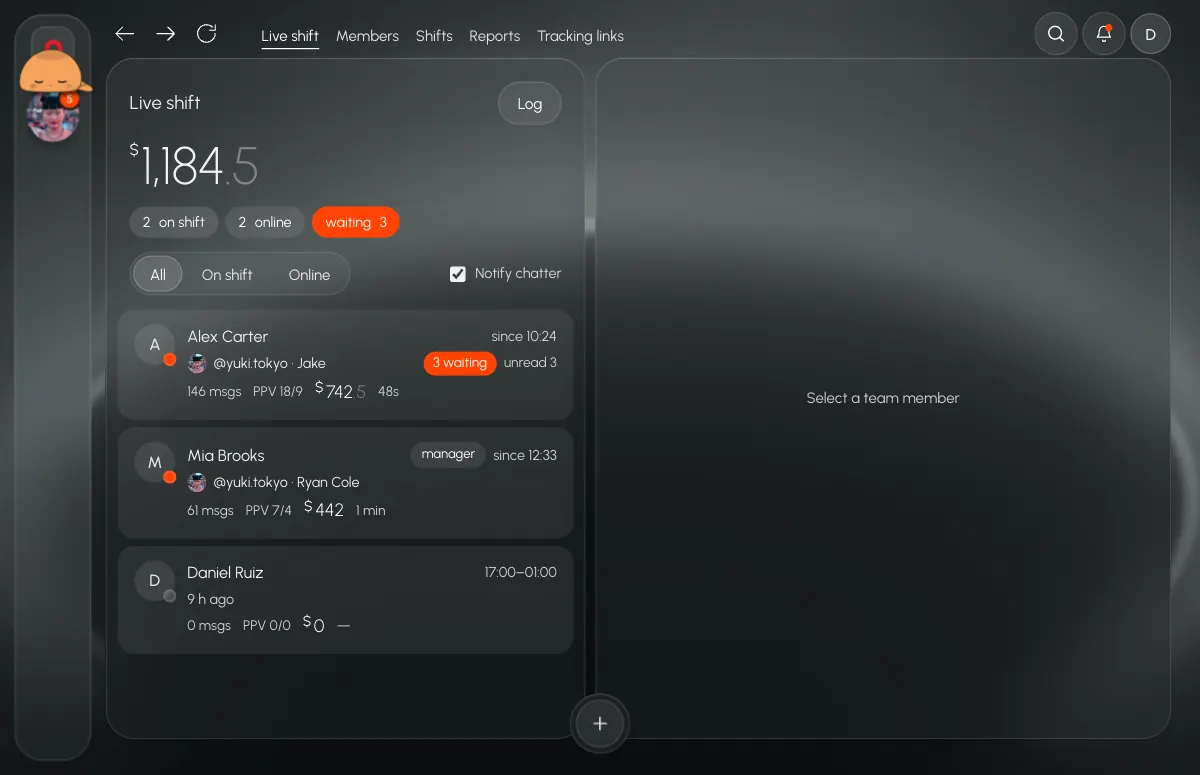
In Leeward the owner and managers open Shift now. On the left is the team, on the right is whoever you pick. At the top you see the revenue of the current shift and short counters: how many people are on shift, how many are online, how many are offline, and how many fans are waiting for a reply.
Four statuses that tell the truth
Every person has one of four states, and each means something different for the owner:
- On shift and online: working, as planned.
- On shift but not online: clocked in and not at the screen. This is the one to look at first.
- Online without a shift: working outside the schedule. Sometimes helpful, sometimes a payroll question.
- Offline: with “last seen N min ago”, so you know whether it was a short break or the end of the day.
The numbers per chatter
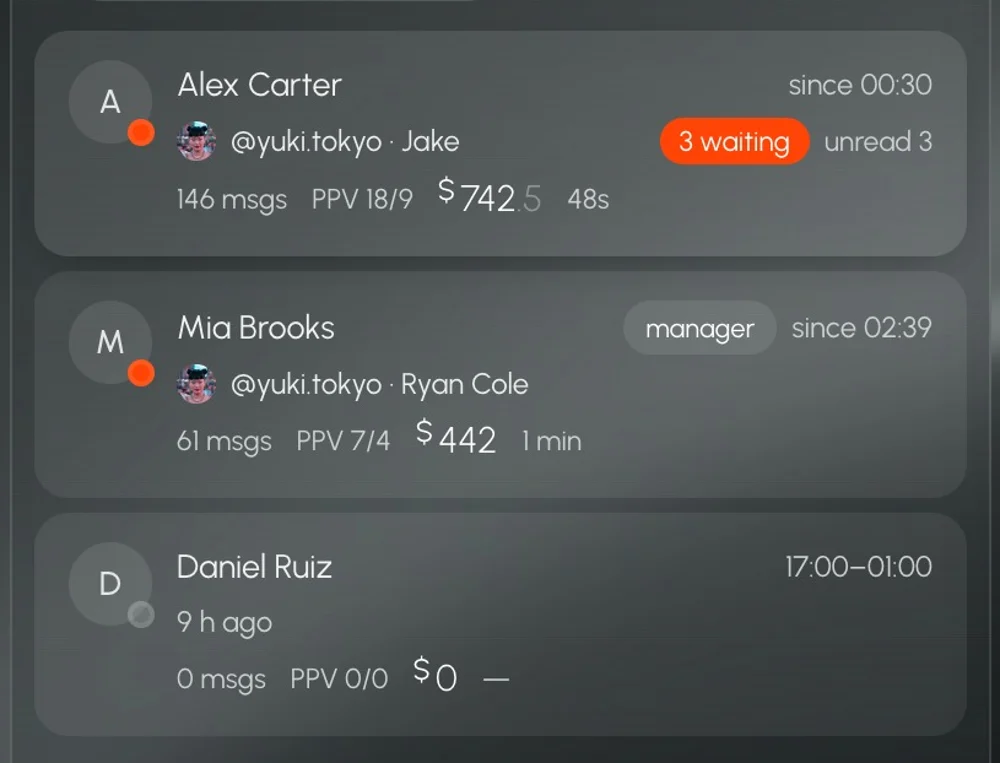
Each row shows which model and which fan the chatter is in right now, how many fans are waiting and how many messages are unread. Under that: messages sent this shift, PPV sent and bought, the money made and the median time to the first reply. Those few numbers answer most questions. A chatter with many messages and no PPV is chatting, not selling. A chatter with a long median reply is keeping people waiting, whatever the message count says.
Read-only watching
When the numbers look wrong, open the chatter and watch their chats as they type. You see their Leeward Chat as it is: the same model, tabs and conversation, even the draft they are writing, with the PPV price on it. You cannot type for them. Watching is read-only, so you never step on a conversation by accident.
Every watch is written to a watch log: who watched whom, when it started and for how long. The owner can also switch on a mark that shows chatters when a manager is watching their shift. Whether to show it is the agency’s call. Our advice: write it into the chatter agreement either way, so nobody feels spied on.
A practical routine for managers
- Check the counters at the start of every shift. Everyone planned should be on shift and online within the first minutes. Anyone “on shift but not online” gets a one-click notification.
- Sort your attention by waiting fans. The chatter with the most waiting fans is where money is leaking right now. Look there before you look at revenue.
- Compare PPV sent to PPV bought. Lots sent and few bought means the offers are wrong or too early. Few sent means the chatter is not selling at all.
- Watch for a few minutes, then talk. Open the chatter, read two or three conversations, then give one concrete piece of feedback. Don’t comment on every message.
- Keep an eye on the median reply time. Set a target the whole team knows, and discuss it at the end of the week, not in the middle of a busy hour.
- Close access the moment someone leaves. One button ends all their logins at once. Combined with the leak filter, that is how you protect fans, see how to stop chatters from taking fans off-platform.
From live shift to fair pay
The same data that shows a shift live also feeds the timesheet and payroll: hours from clock-in and clock-out, sales from PPV the chatter sent and the fan bought. That means the conversation about money at the end of the month starts from numbers both sides can see. We describe the setup in how to pay OnlyFans chatters.
Leeward runs OnlyFans and Fansly models in one desktop app for macOS and Windows. Roles decide what each person sees, and access can be limited to shift hours or to chat only. Plans are per model, see pricing.
Every model you connect starts with a 7-day free trial. Download Leeward, invite two chatters and watch one shift live.